Complete Beginner’s Guide to HappyMod
October 19, 2026 (7 days ago)
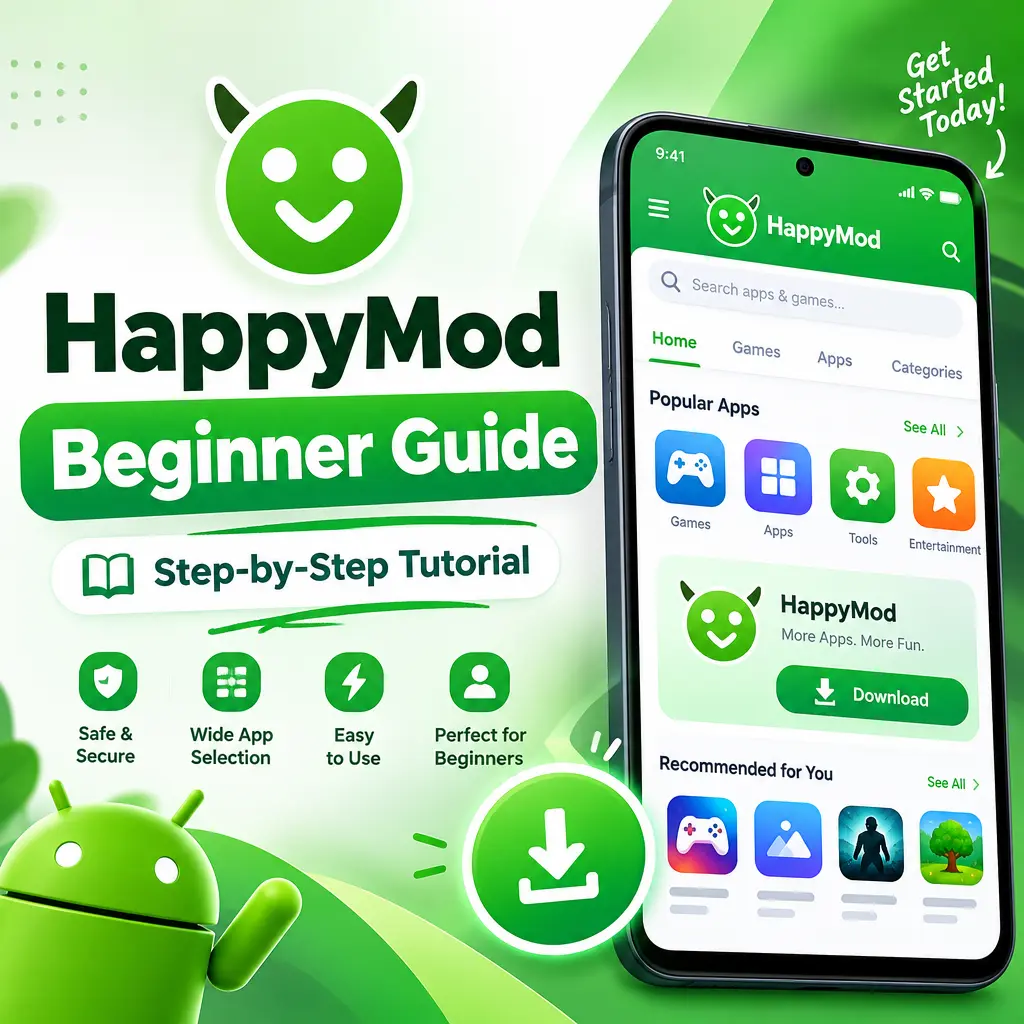
HappyMod is a marketplace for modified Android apps and games. These modified apps, often called mods, can include extra features, unlocked items, custom settings, removed ads, or changes that are not available in the original version. For beginners, HappyMod can look exciting, but it is important to understand how it works, how to use it safely, and what risks come with installing apps from outside the Google Play Store.
This guide explains the basics in simple words. You will learn what HappyMod is, how to install it, how to find apps, what to check before downloading, and how to protect your device while using it.
What Is HappyMod?
HappyMod is an Android app marketplace where users can download modified versions of apps and games. Unlike the Google Play Store, HappyMod focuses on APK files that have been changed by developers or modders. These changes may add new functions, unlock game items, change app behavior, or provide different versions of the same app.
Each app listing usually shows details such as the version number, mod features, file size, Android requirements, and user feedback. Some listings also include comments from users who tested the file. This can help beginners decide whether a mod is worth downloading.
- APK: The file format used to install Android apps manually.
- Mod: A changed version of an app or game.
- Original app: The official version from the developer.
- Unknown sources: A phone setting that allows apps to be installed outside the Play Store.
Before You Start: Important Safety Notes
HappyMod can be useful, but it is not risk free. Since modified apps are not always checked the same way as apps in the Play Store, some files may contain bugs, unwanted ads, or unsafe code. You should also respect app developers and local laws. Avoid using modified apps to steal paid content, cheat in online games, or break the rules of a service.
A good beginner rule is simple: only download apps you understand, avoid suspicious files, and do not install mods for apps that handle sensitive information like banking, email, password managers, crypto wallets, or work accounts.
- Use a secondary Google account if you are testing apps.
- Do not enter private passwords into modified apps.
- Keep your Android system updated.
- Use a trusted mobile security app if possible.
- Back up important photos, files, and messages before experimenting.
How to Download and Install HappyMod
HappyMod is usually not available on the Google Play Store, so users install it by downloading its APK file from the official HappyMod website or another trusted source. Be careful with fake websites that copy the name and design. A fake APK may contain malware or unwanted apps.
- Open your Android browser.
- Go to the official HappyMod website or a source you trust.
- Download the latest HappyMod APK file.
- When the download is complete, tap the APK file.
- If Android blocks the install, open the settings prompt.
- Allow installation from that browser or file manager.
- Return to the APK and tap install.
- Open HappyMod after installation finishes.
After installing, it is a good idea to turn off the unknown sources permission again. This prevents other APK files from being installed by mistake.
Understanding the HappyMod Home Screen
When you open HappyMod for the first time, you will see categories, search tools, app lists, and game lists. The layout may change over time, but the main idea stays the same. You can browse trending mods, search for a specific app, or look through categories like action games, tools, entertainment, or simulation.
- Search bar: Use this to find a specific app or game quickly.
- Categories: Helpful if you want to explore apps by type.
- Latest updates: Shows recently updated mods.
- Popular downloads: Shows apps many users are downloading.
- Comments: User feedback that may reveal bugs or problems.
How to Download Your First Mod
Downloading a mod from HappyMod is usually simple, but beginners should take a moment to read the app page before tapping download. Do not choose an app only because it has a big promise like unlimited coins or premium unlocked. Check the version, comments, and permissions first.
- Open HappyMod.
- Search for the app or game you want.
- Tap the app listing to open its details page.
- Read the mod description carefully.
- Check the app version and file size.
- Look at user comments for issues or warnings.
- Tap download if everything looks reasonable.
- After downloading, tap install.
If the app asks for too many permissions, think twice. For example, a simple puzzle game should not need access to your contacts, microphone, and text messages. Strange permission requests can be a warning sign.
Tips for Choosing Safer Mods
Not every mod is equal. Some work well, while others crash, fail to install, or create security problems. Beginners should build a habit of checking small details before downloading anything.
- Choose mods with many downloads and positive comments.
- Avoid apps with no description or unclear mod features.
- Read recent comments, not only old ones.
- Check whether the mod matches your Android version.
- Do not install apps that request unrelated permissions.
- Be careful with mods for online games, as they may lead to account bans.
- Avoid modified apps for banking, shopping, payments, or private messaging.
How to Update Apps from HappyMod
Modified apps may not update through the Google Play Store. If you install a mod, you may need to update it manually through HappyMod. Updates can fix bugs, add features, or support a newer version of the original app. However, updating can sometimes remove the modded features or cause the app to stop working.
- Open HappyMod and search for the app you installed.
- Check if a newer version is available.
- Read the update description and user comments.
- Back up your app data if the app supports it.
- Download and install the newer version.
If the current version works well, you do not always need to update immediately. Waiting a few days can help you see if other users report problems with the new release.
What to Do If a Mod Does Not Work
Sometimes a mod will not install, will crash at launch, or will not include the features listed in the description. This is common with modified apps. The issue may come from your Android version, device model, missing files, or changes made by the original app developer.
- Restart your phone and try again.
- Make sure you have enough storage space.
- Uninstall the old version before installing the mod.
- Check whether the app needs an OBB or extra data file.
- Try a different version of the mod.
- Read comments to see if others have the same issue.
If a mod keeps failing, it is better to remove it than to force it. A broken or unstable app can slow down your phone or create other problems.
Keeping Your Phone Clean and Secure
Using HappyMod responsibly means checking your device from time to time. Remove apps you no longer use, clear old APK files from your downloads folder, and review app permissions regularly. This helps keep your phone faster, cleaner, and safer.
- Go to your phone settings.
- Open Apps or App Management.
- Review installed apps one by one.
- Remove apps you do not recognize or no longer need.
- Check permissions for apps you keep.
- Delete old APK files from your storage.
HappyMod can be an interesting tool for Android users who want to explore modified apps and games. For beginners, the key is to move slowly, read details carefully, and protect personal information. If you treat each download with caution and avoid risky apps, you can better understand how modded Android apps work while keeping your device safer.
Recommended For You